Restore from hardware wallet
Supported devices
Connected over Bluetooth or USB
- Ledger — Monero, Bitcoin, Litecoin, Ethereum, Polygon
- Trezor — Monero, Bitcoin, Litecoin, Ethereum, Polygon
- BitBox — Bitcoin, Ethereum, Polygon (Android only)
Air-gapped, over QR codes — these devices are never plugged in or paired. Cake Wallet displays a QR code, you scan it with the device, and then scan the signed result back into Cake Wallet.
- COLDCARD — Bitcoin, using either the
BCURorBBQRQR code format - Cupcake — Cake's own air-gapped signing app; see the Cupcake documentation
Restore wallet from hardware
1
Step 1
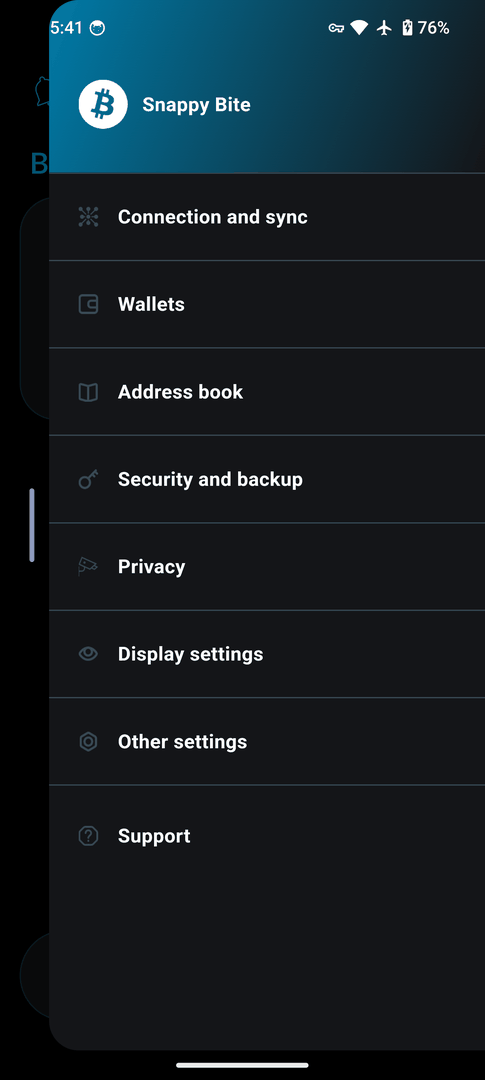
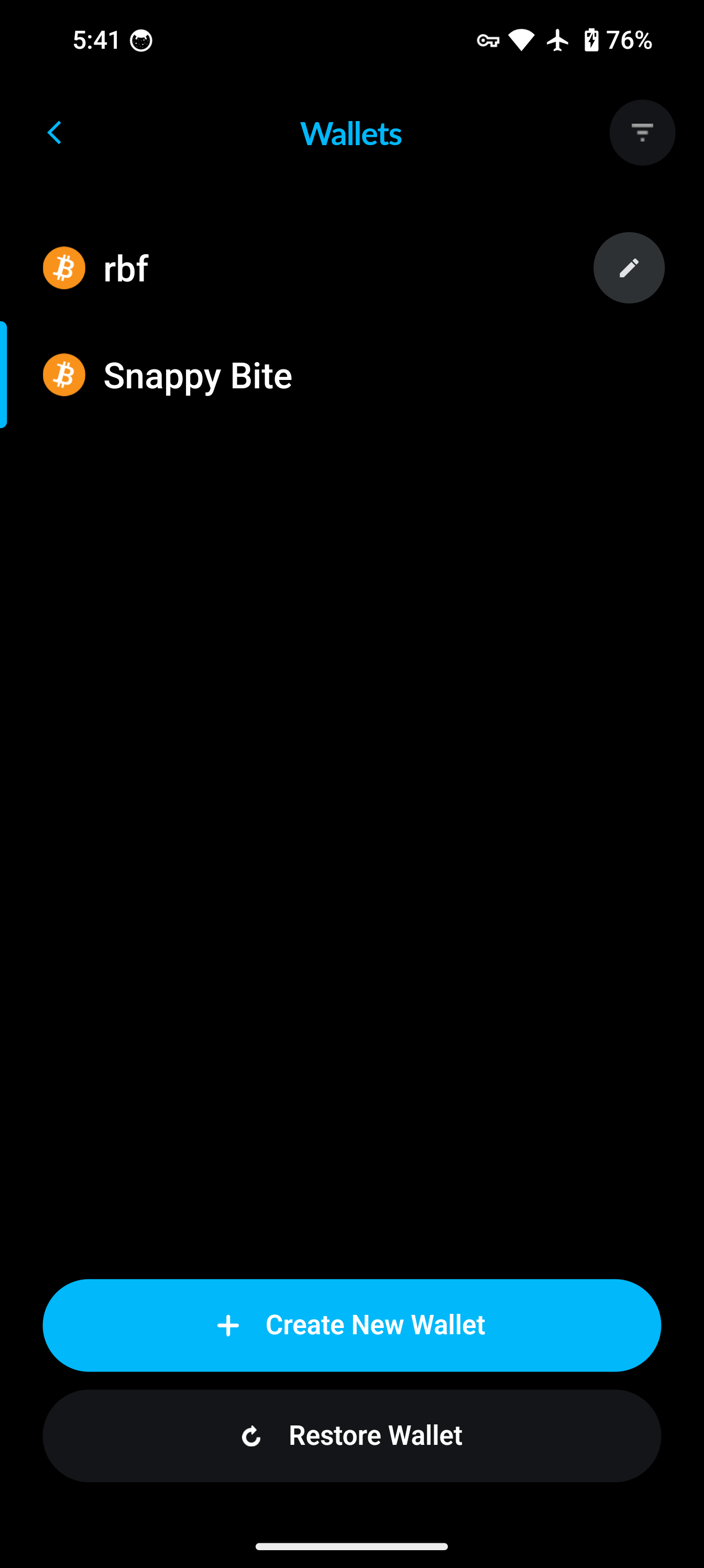
Go to the Wallets tab in the bottom navigation bar, then tap Restore Wallet.
2
Step 2
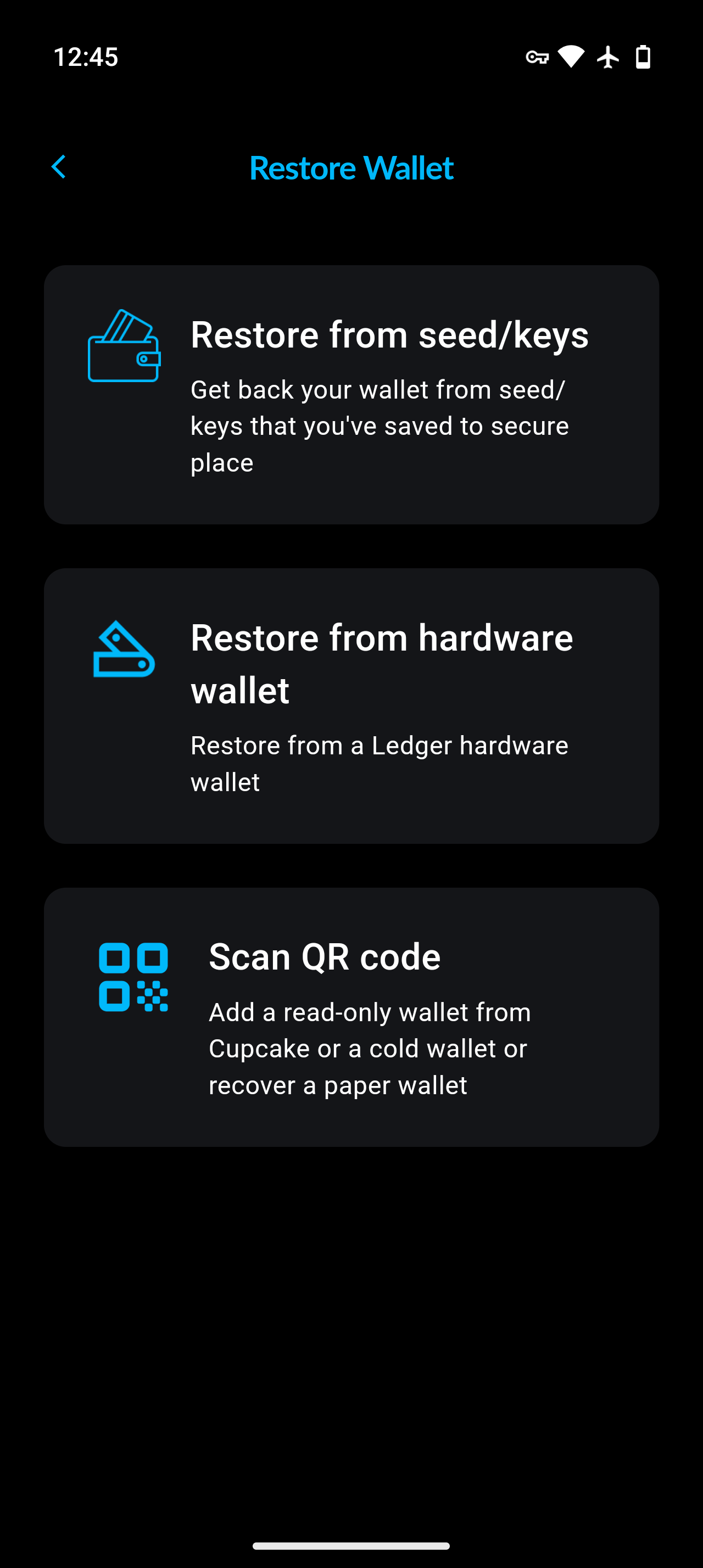
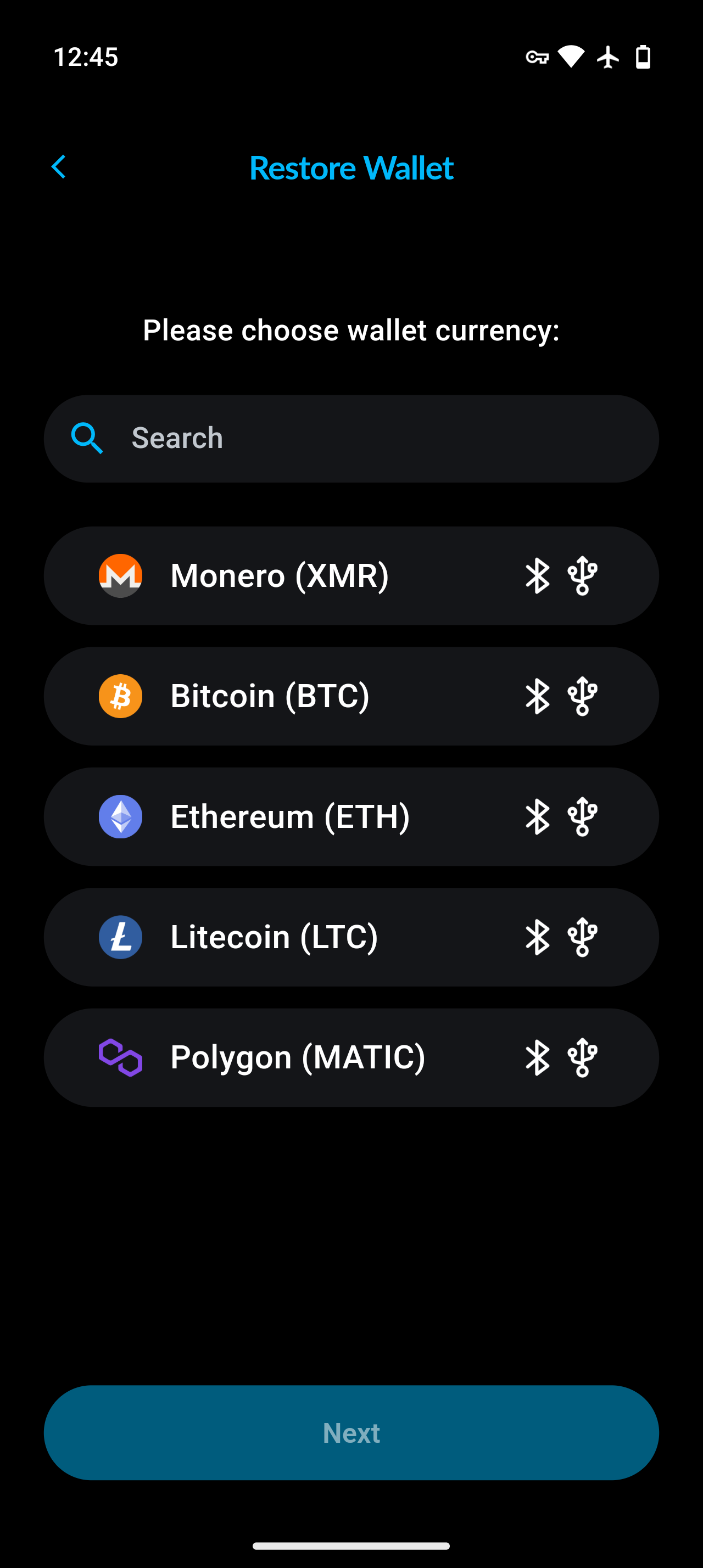
On the Restore Wallet screen, tap Hardware wallet, then choose the wallet type.
3
Step 3
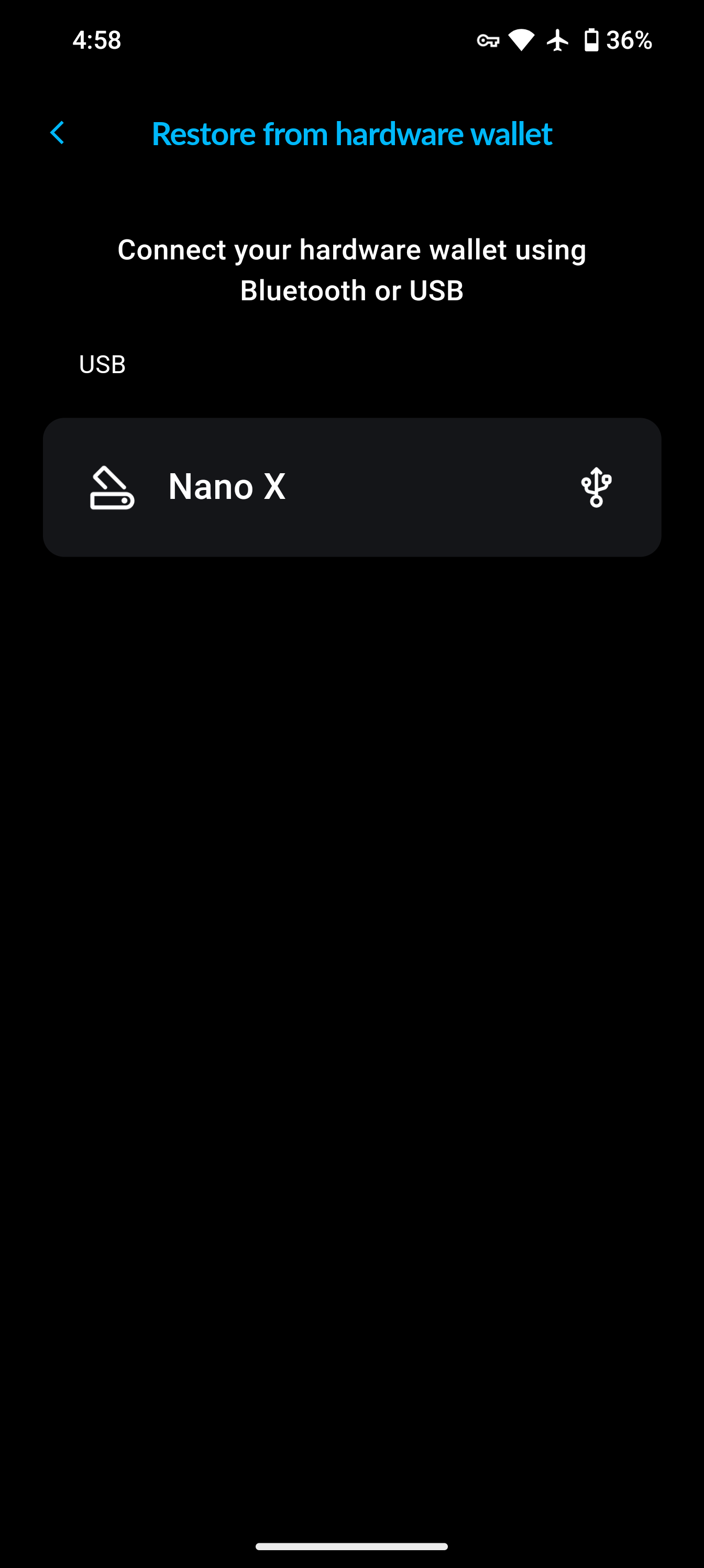
Connect your hardware wallet device.
On Android, macOS and Linux you can connect over either Bluetooth or USB. On iOS, only Bluetooth is offered — USB is not available.
Air-gapped devices such as COLDCARD and Cupcake are never connected: instead of this step, you scan QR codes back and forth between Cake Wallet and the device.
Make sure your hardware wallet has your selected crypto app open before selecting to use it.
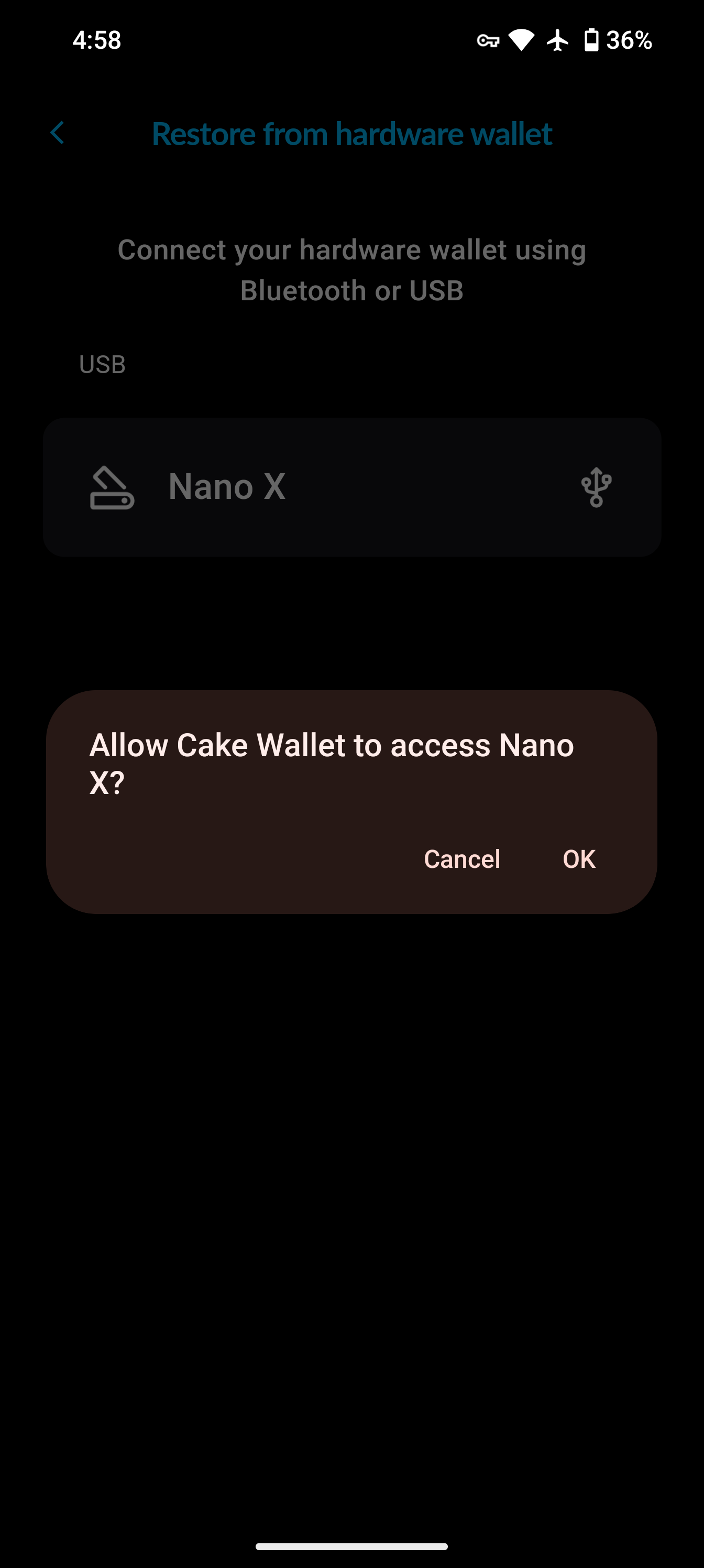
Once you see your device, select it from the menu and allow access (if applicable).
4
Step 4
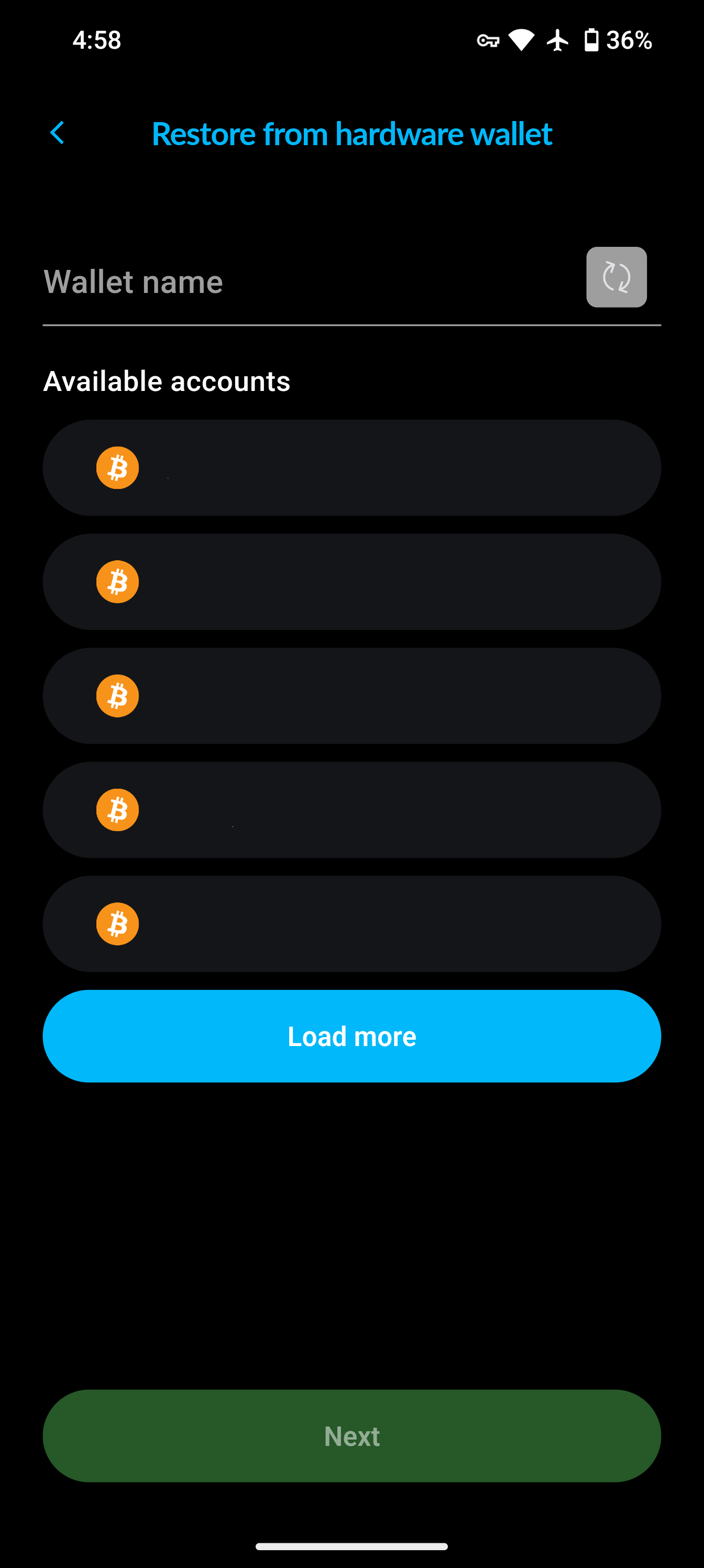
Select your desired account and name you wallet.
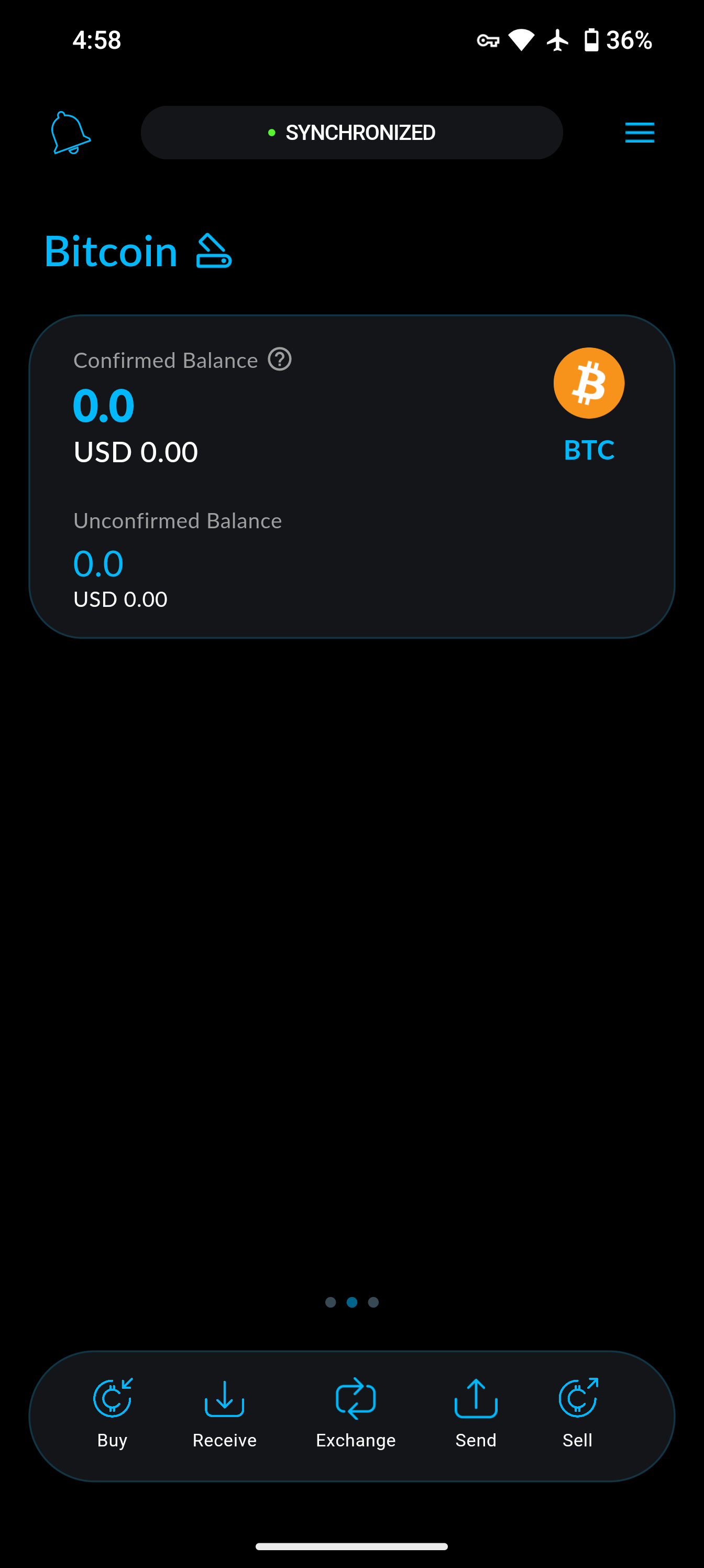
Then tap Next, and you will be in a view mode of your hardware wallet's account, indicated by the icon next to the wallet type.
Tutorial video