
Send funds
Sending works the same way for every currency in Cake Wallet: pick a destination, set an amount, check the fee, confirm. Two minutes, start to finish.
1
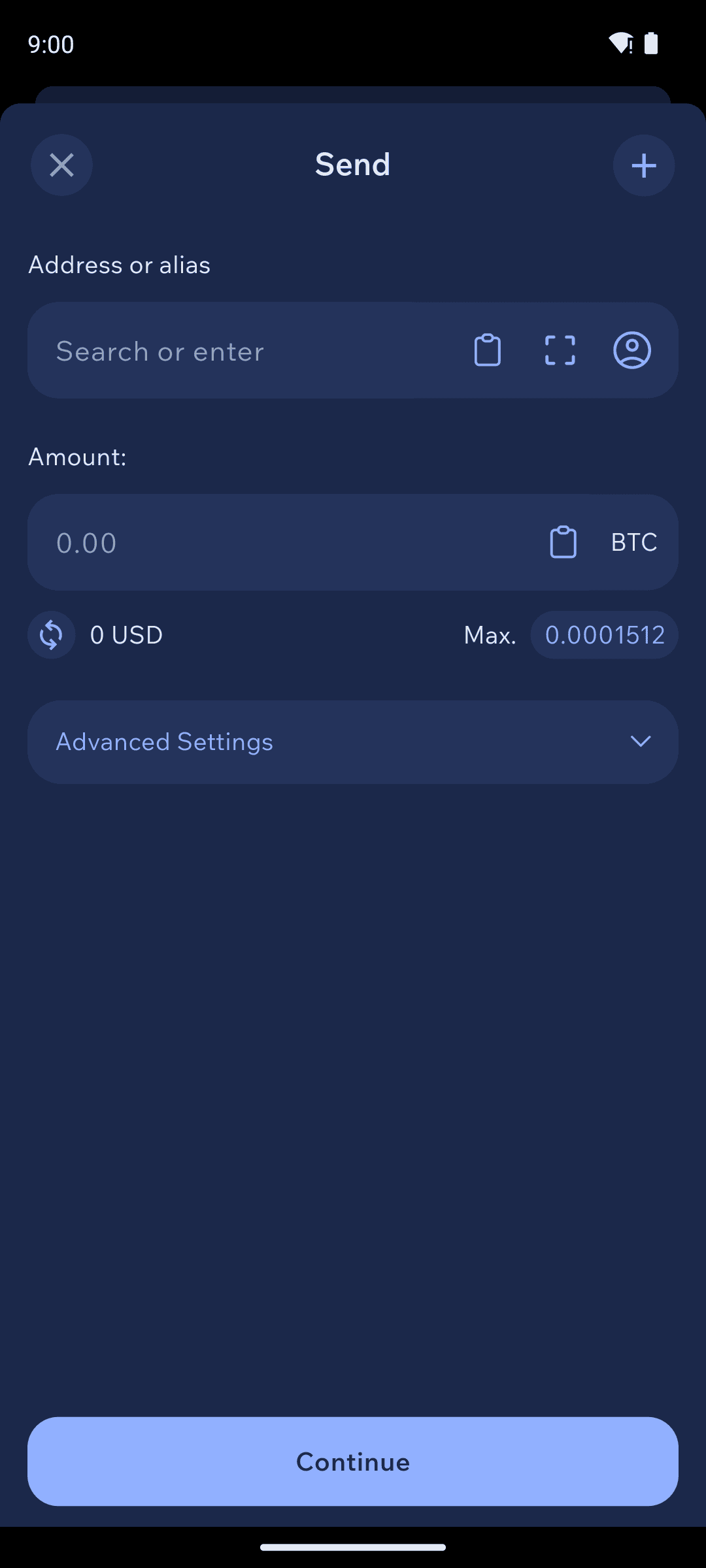
Open the Send screen
Tap Send on the home screen.
2
Enter the destination
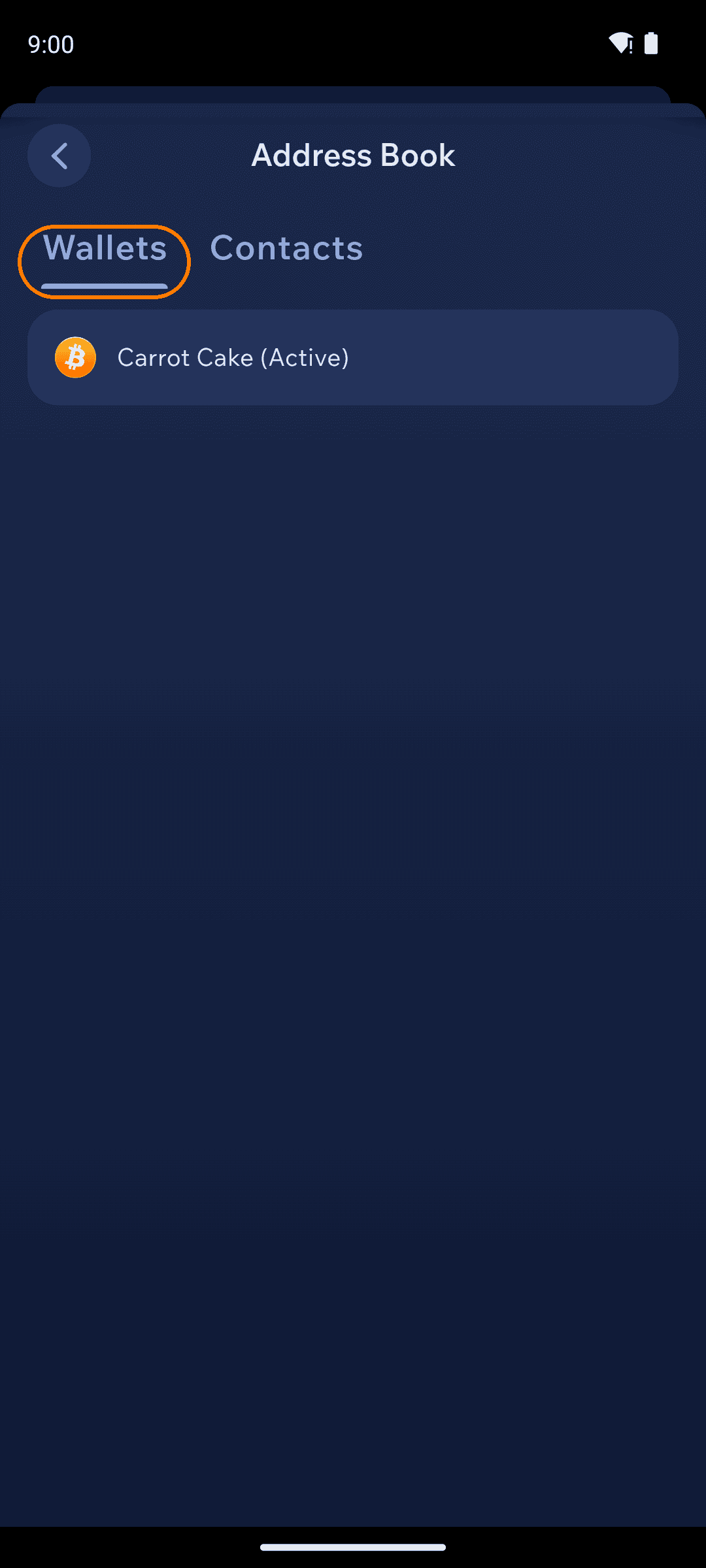
Four ways, in order of safety and convenience:
- Scan the recipient's QR code.
- Pick from your contacts — tap the contacts icon; the
Walletstab also lets you send between your own wallets. - Paste a copied address.
- Type an alias — the address field resolves human-readable names (ENS, OpenAlias, and more; see Address lookup services).
3
Set the amount
Enter an amount in crypto or in your fiat currency — Cake Wallet converts as you type. Tap Max to send everything (the network fee is deducted from the total). Need to pay several people at once? The + button at the top right of the send screen lets you easily build one transaction with multiple different destinations.
4
Check the fee
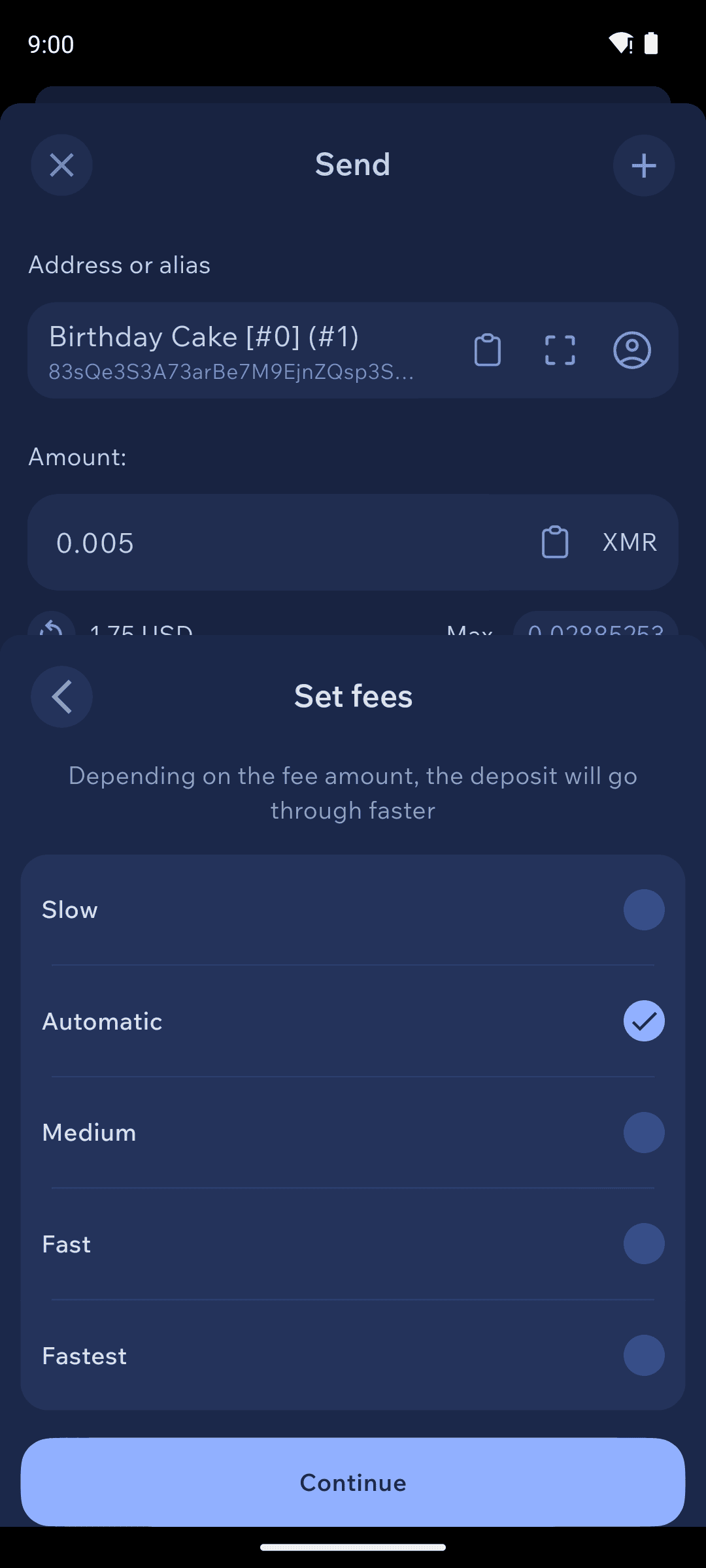
Tap the fee row to choose a priority. Faster confirmation costs more:
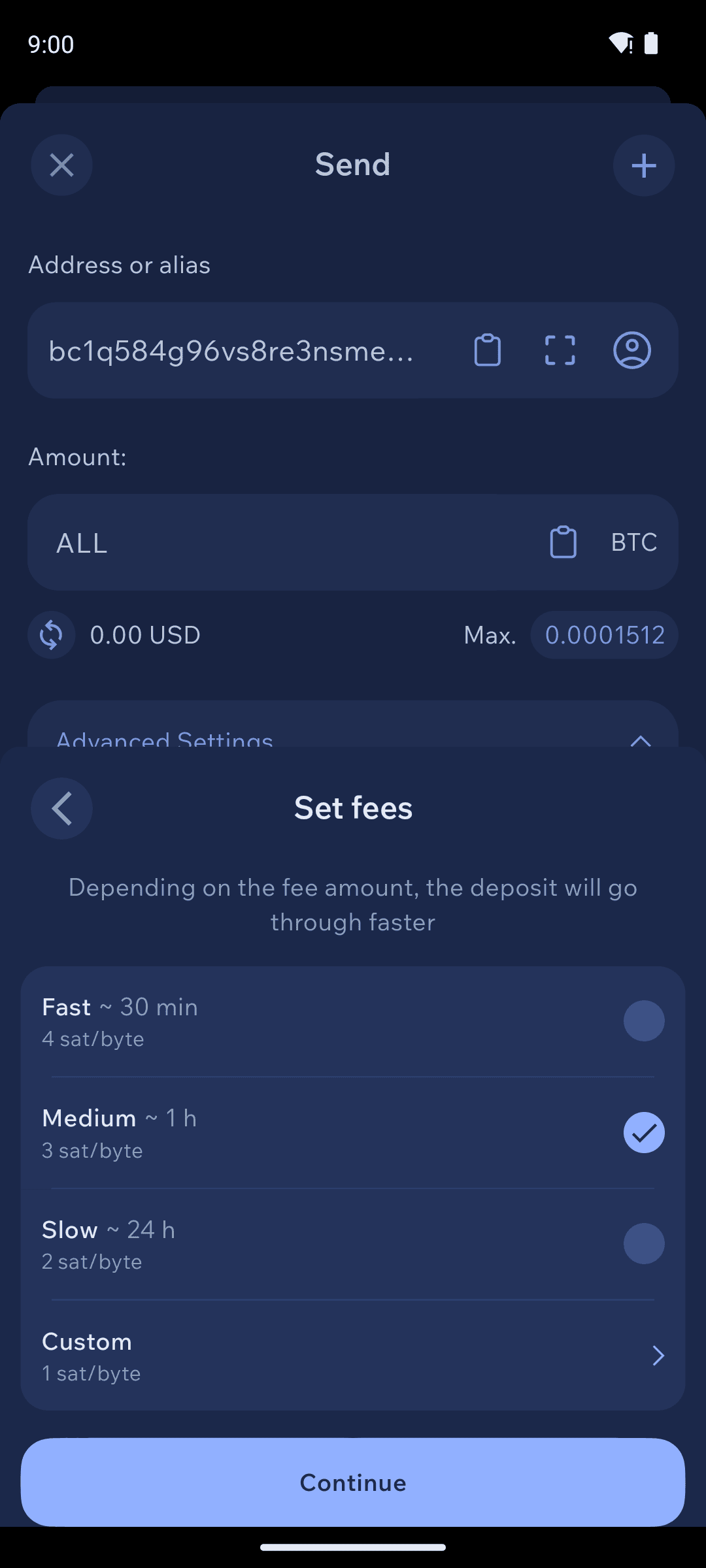
- Bitcoin-family: priorities show a time estimate and sat/byte rate (Medium is the default), plus a
Customrate for full control. - Monero:
Automaticis the default and right for almost everyone; higher priorities pay more to confirm sooner. - Ethereum and tokens: the fee is gas paid in the chain's native coin — to send USDT you need a little ETH.
5
Review and send
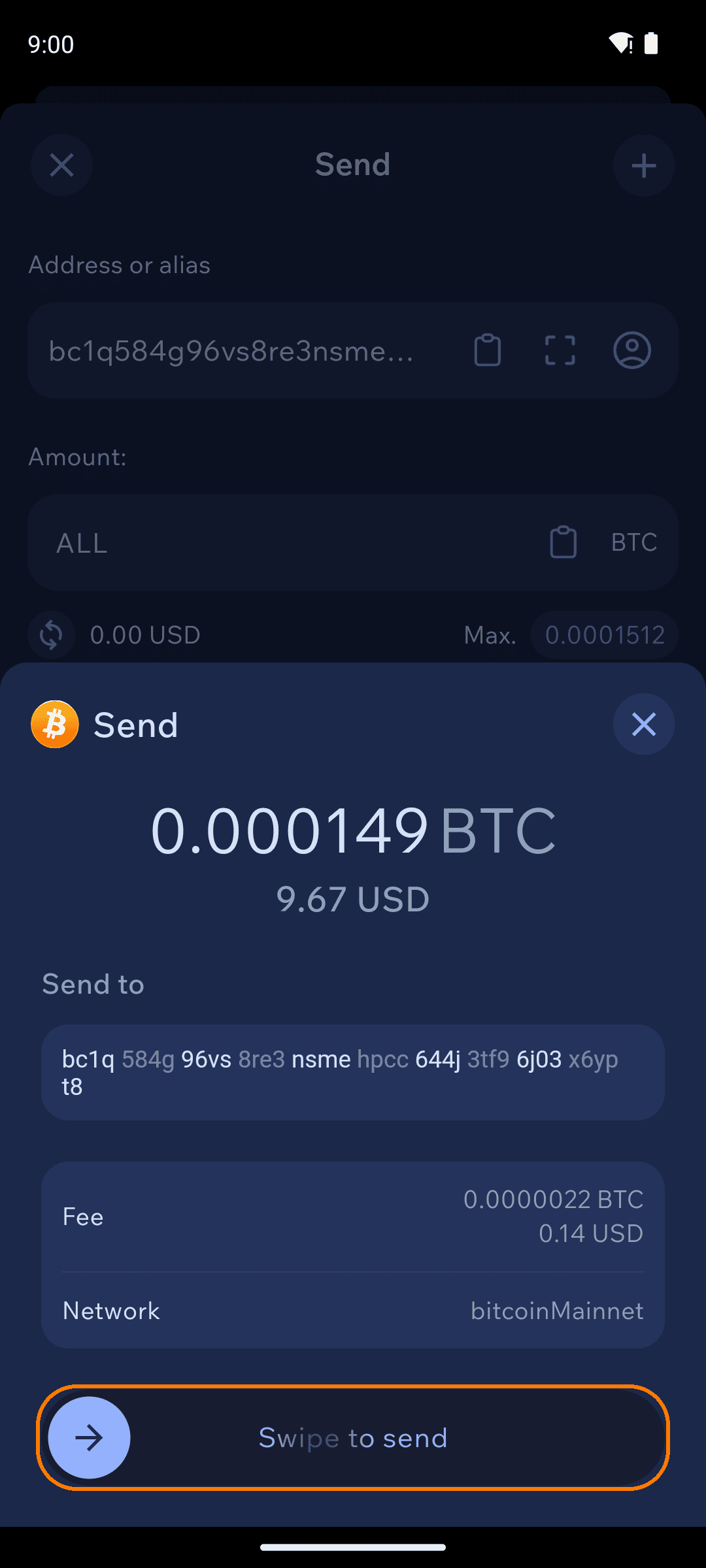
The confirmation sheet shows the destination, amount, fee, and network. Check the address one last time, then Swipe to send.
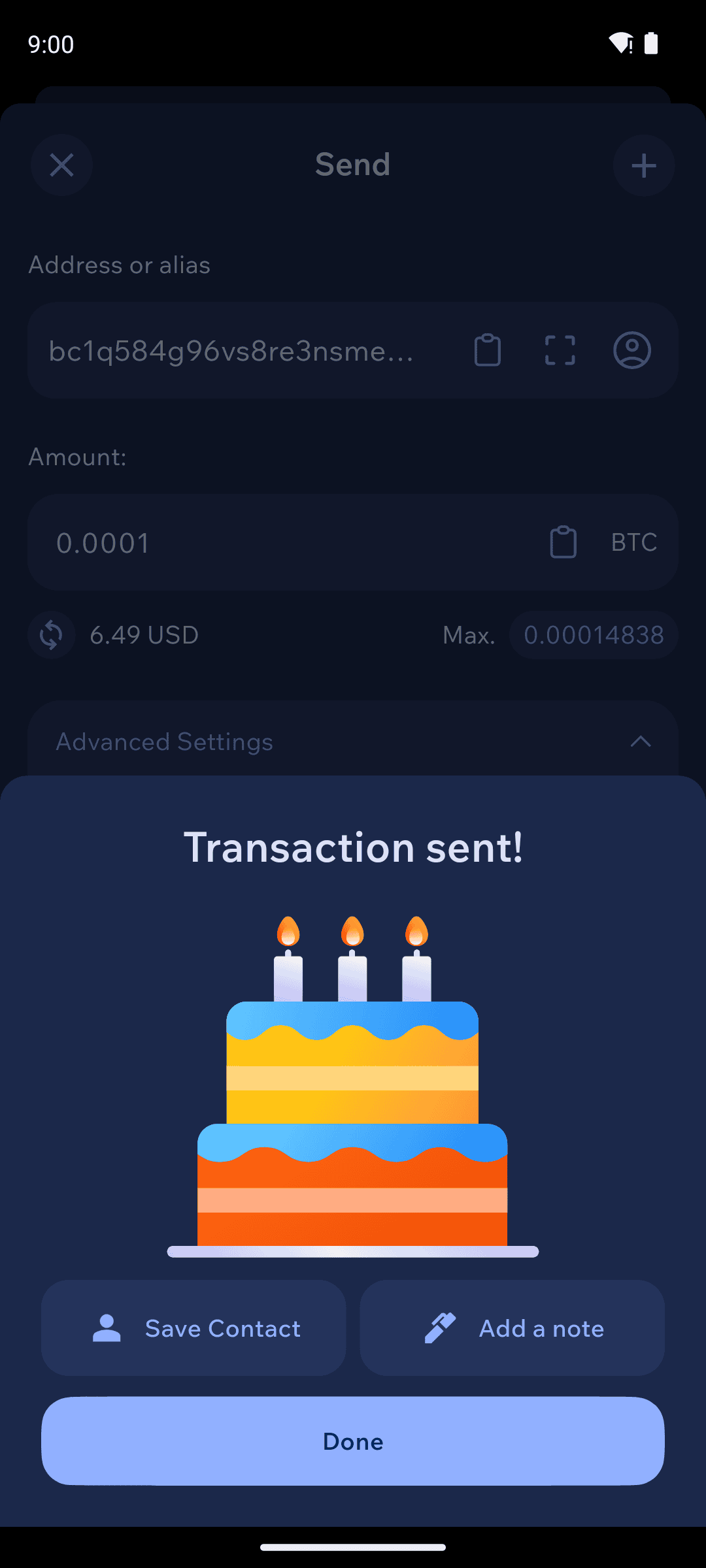
From the success screen you can save the recipient as a contact or add a private note — notes stay on your device, visible only to you.
6
Track it
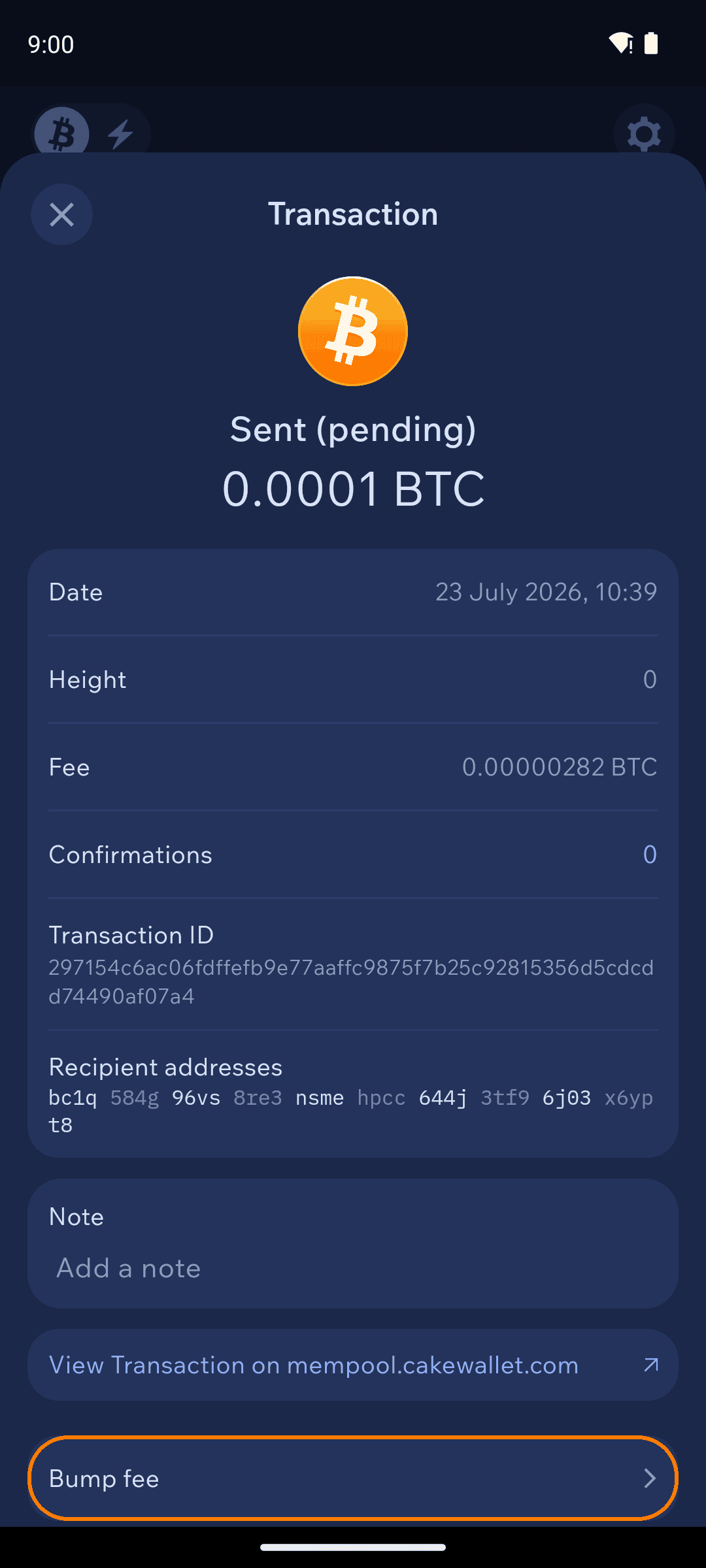
Your new transaction appears in History immediately. Tap it for details: confirmations, fee, transaction ID, and a block-explorer link. Bitcoin transactions also offer Bump fee if you chose too slow a priority and want to speed things up.
Troubleshooting
"Not enough inputs available"
Some of your outputs are likely deselected or frozen in Coin Control. Open Advanced Settings → Coin Control on the Send screen and select more outputs, or unfreeze them.
My transaction is stuck as pending
On Bitcoin, open the transaction's details and use Bump fee to replace it with a higher-fee version. On other chains, pending transactions almost always confirm — they just need more time when the network is busy. See Why are my funds not appearing? for more.
The available balance is lower than my total balance
Recently received funds need confirmations before they're spendable on chains like Monero, and frozen coins are excluded. See Why is my Available Balance 0?.